
Connections
Connect Kafiq to a Kafka cluster over PLAINTEXT, SSL or SASL, through an SSH tunnel when the brokers sit behind one, with passwords kept in the system keychain.
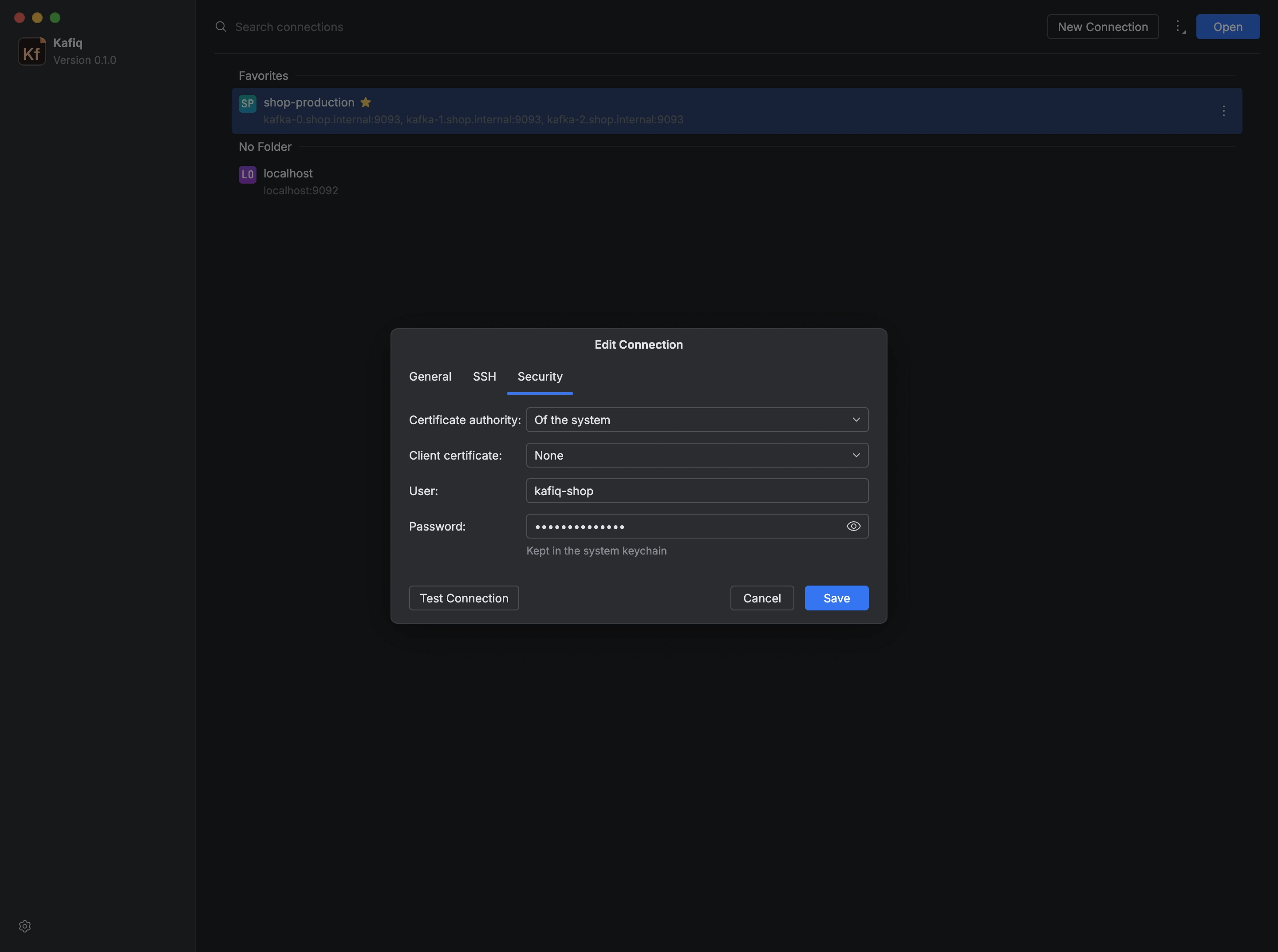
A connection identifies a Kafka cluster by its bootstrap servers and tells Kafiq how to reach it. Connections are listed on the start screen, where you can group them in folders, mark them as favorites, and duplicate, edit or remove them.
In the connection dialog, the General tab holds the name, the servers, the protocol and the mechanism, and the Security tab holds what they require:
- PLAINTEXT neither encrypts nor authenticates.
- SSL uses the certificate authority that signs the brokers, either the system's or your own, plus a client certificate and key when the cluster requires one.
- SASL_PLAINTEXT and SASL_SSL with
PLAIN,SCRAM-SHA-256orSCRAM-SHA-512use a user and password. OAUTHBEARERuses a token obtained from an identity provider through the client credentials flow.- Amazon MSK IAM, over SASL_SSL, signs with AWS credentials taken from the environment, from an AWS profile, or from an access key, whose secret key and session token are kept in the system keychain.
- Kerberos (
GSSAPI) depends on the system: on Windows, Kafiq uses your Windows login ticket; on macOS, a principal with its keytab, or the ticket already on the machine when the keytab is left empty. Where the system offers no Kerberos, the dialog says so.
The SSH tab opens a tunnel to brokers that only a bastion host can reach, with PLAINTEXT or SASL_PLAINTEXT, since SSH already encrypts the traffic.
Passwords, client secrets and keys are kept in the system keychain, never in the connections file.
To create a connection:
- Click New Connection on the start screen.
- Enter a name and the servers as
host:port, separated by commas, and choose the protocol and the mechanism. - Fill in the credentials and certificates on the Security tab.
- Click Test Connection, which reports how many brokers it reached, then Save.
- Open the connection to see its topics, consumer groups and brokers.